
Connecting your LMS with invigilatorPlus.
Setup LTI 1.1 in invigilatorPlus
- Select ‘Settings’ → ‘LTI Settings’ from the navigation panel.
- Click the ‘Add LTI Setting’ button.
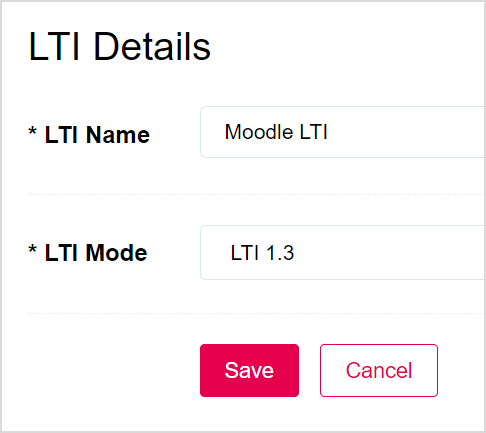
- For ‘LTI Name’ enter a name for the LTI setting.
- Select ‘LTI 1.1’ for ‘LTI Mode’.
- Click the ‘Save’ button.
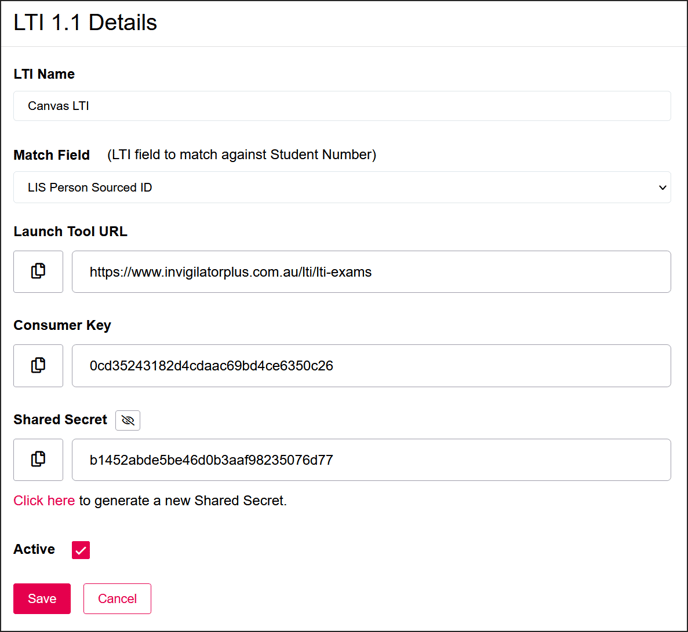
- For ‘Match Field’, select the LTI field that will be used to match against the Student Number field in invigilatorPlus.
- Note the ‘Launch Tool URL’, ‘Consumer Key’ and ‘Shared Secret’. These will be required when setting up the LTI in Canvas LMS.
Setup LTI 1.1 in Canvas LMS
- Log into Canvas LMS using an admin account.
- Go to Admin → <Site Name> → Settings.
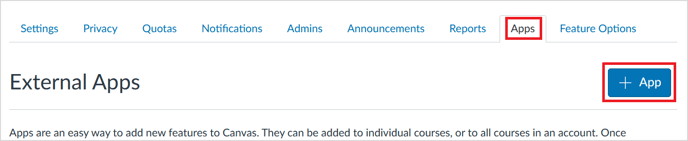
- Select the ‘Apps’ tab.
- Click the ‘+ App’ button.
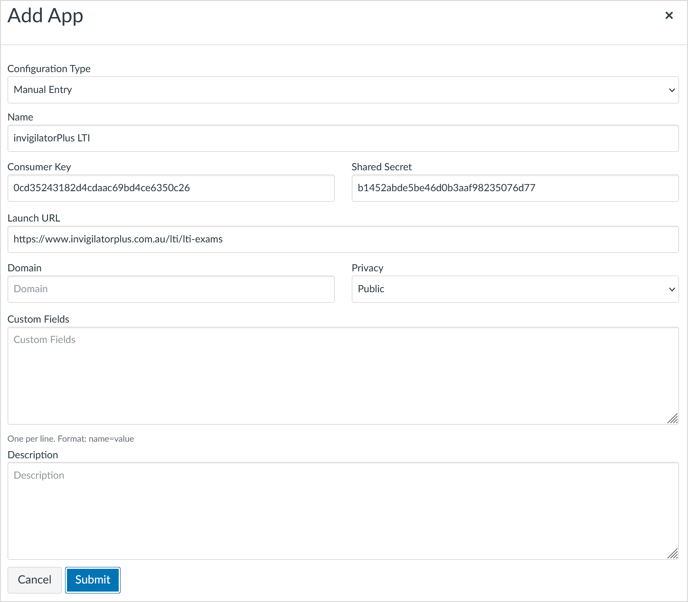
- Enter a name for the app.
- Copy/paste the values for ‘Launch URL’, ‘Consumer key’ and ‘Shared Secret’ from the settings in invigilatorPlus.
- Set the ‘Privacy’ field to ‘Public’.
- Click the ‘Submit’ button to save the LTI app.
Add LTI link in Canvas LMS
- Log in to Canvas using an admin account.
- Navigate to a course page via the courses section (Admin → <Site Name> → Courses).

- Click the ‘+ Module’ button located at the top of the page.
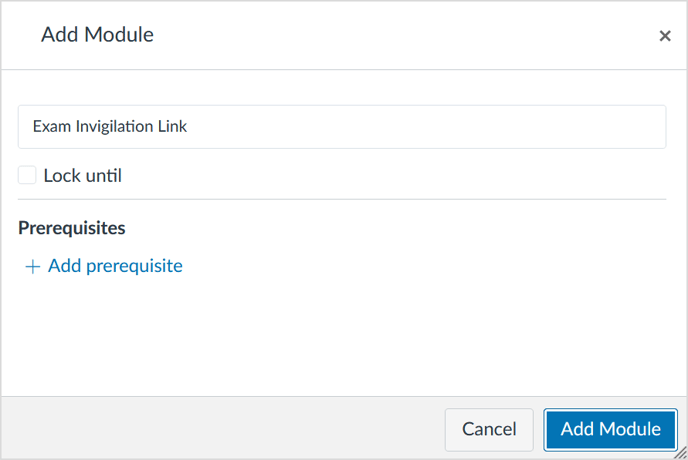
- Enter a name for the module.
- Click the ‘Add Module’ button.

- Click the plus icon to add an external tool to the module.
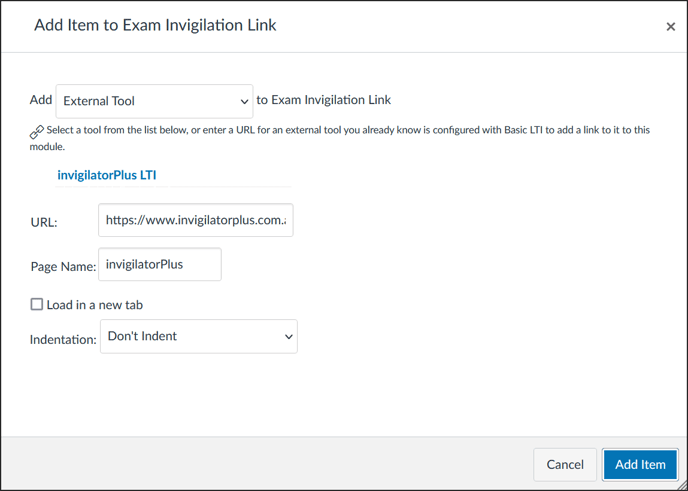
- Select ‘External Tool’ from the ‘Add’ dropdown.
- Click on the external tool you would like to add.
- For the URL field, enter the ‘Launch Tool URL’ provided by invigilatorPlus when setting up the LTI in invigilatorPlus.
- For the ‘Page Name’ field, enter the title for the link that will be displayed in the module.
- When ready click the ‘Add Item’ button.

- To publish the module and make the LTI link available to students, click on the publish icon.

The icon will turn green to indicate the module is published.