
Connecting your LMS with invigilatorPlus.
Setup LTI 1.3 in invigilatorPlus
- Select ‘Settings’ → ‘LTI Settings’ from the navigation panel.
- Click the ‘Add LTI Setting’ button.
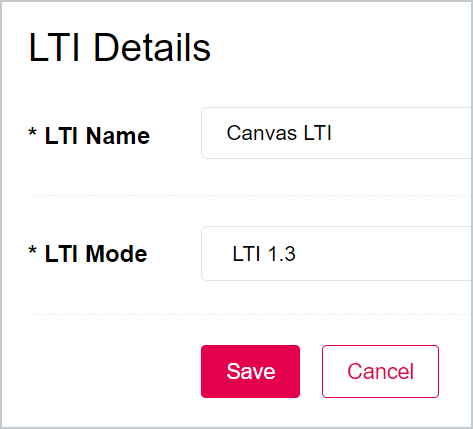
- Enter a name for the LTI setting.
- For ‘LTI Mode’ select ‘LTI 1.3’.
- Click the ‘Save’ button.
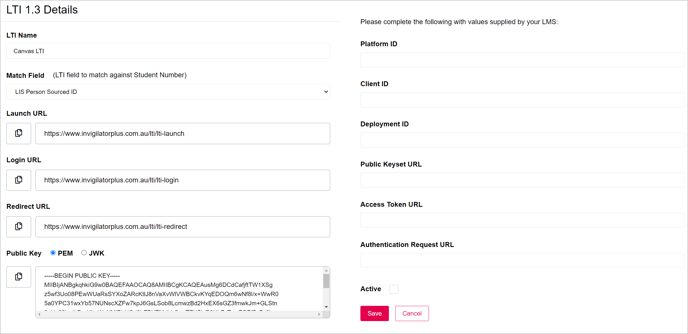
The LTI 1.3 Details form contains values that need to be supplied to Canvas LMS, and fields that need to be completed with values supplied by Canvas LMS.
- For ‘Match Field’, select the LTI field that will be used to match against the Student Number field in invigilatorPlus.
Setup LTI 1.3 in Canvas LMS
- Log into Canvas LMS using an admin account.
- Go to Admin → <Site Name> → Developer keys.
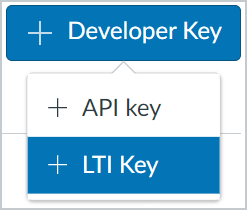
- Click the ‘+ Developer Key’ button.
- Select ‘+ LTI key’ from the dropdown menu.

- Enter a ‘Key name’, ‘Title’ and ‘Description’ for the developer key.
- For ‘Method’ select ‘Manual entry’.
- Copy the following values from the LTI 1.3 form in invigilatorPlus.
- For ‘Target Link URI’ enter the invigilatorPlus ‘Launch URL’.
- For ‘OpenID Connect Initiation URL’ enter the invigilatorPlus ‘Login URL’.
- For ‘Redirect URIs’ enter the invigilatorPlus ‘Redirect URL’.
- For ‘Public key’ enter the invigilatorPlus ‘Public Key’ in JWK format.
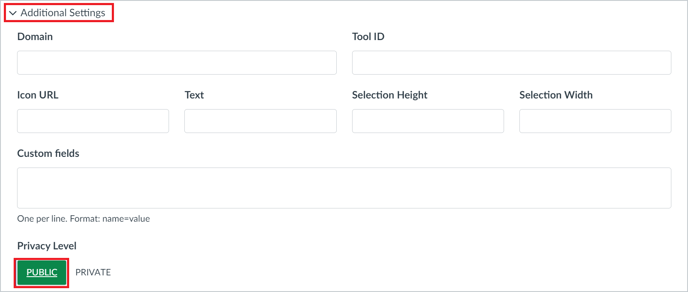
- Expand the ‘Additional Settings’ section.
- Set the ‘Privacy Level’ to ‘Public’.
- Click the ‘Submit’ button to save the LTI app.

- To activate the developer key, click the ‘On’ element in the ‘State’ section and confirm you want to change the developer key state.

State should now be set to On and displayed in green.
- Copy the Client ID displayed in the ‘Details’ section. It will be required in the next step.
- Go to Admin → <Site Name> → Settings.
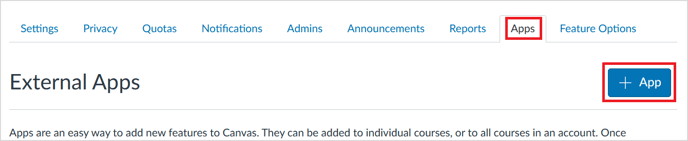
- Select the ‘Apps’ tab.
- Click on the ‘+ App’ button.
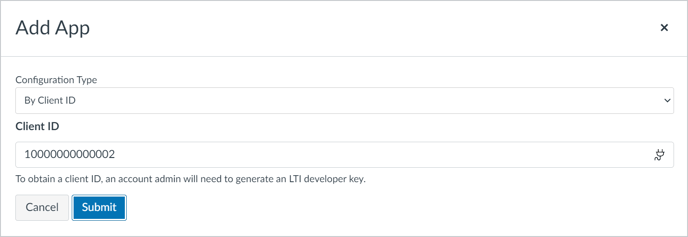
- For ‘Configuration Type’ select ‘By Client ID’.
- For ‘Client ID’, enter the Client ID you copied previously.
- Click the ‘Submit’ button.
Complete LTI 1.3 form in invigilatorPlus
To complete the LTI 1.3 form in invigilatorPlus you will need to retrieve the Client ID and Deployment ID from Canvas LMS.
- To retrieve the Client ID go to Admin → <Site Name> → Developer keys.
- Copy the key listed in the ‘Details’ section for the relevant developer key.
- To retrieve the Deployment ID go to Admin → <Site Name> → Settings → Apps.
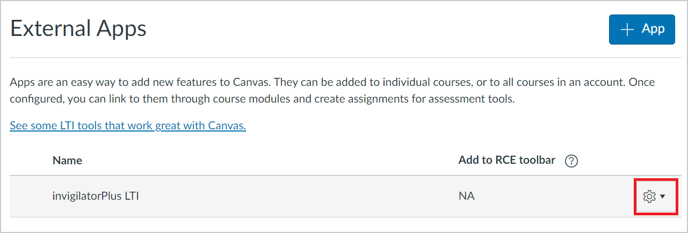
The external apps will be displayed.
- Click on the gear icon of the relevant external app.
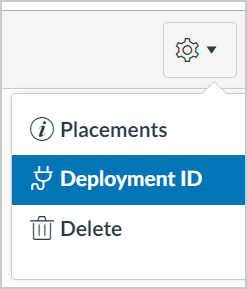
- Select ‘Deployment ID’ from the dropdown menu.
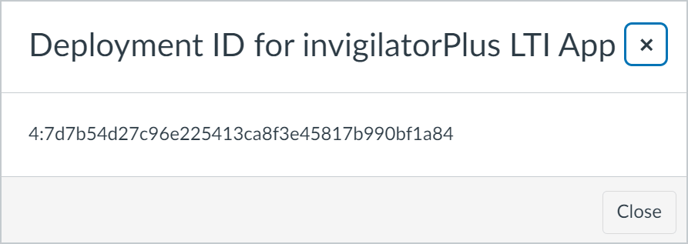
- This will display a modal dialogue box containing the Deployment ID.
- Enter the following configuration values to the LTI 1.3 form in invigilatorPlus.
- For ‘Platform ID’ enter: https://canvas.instructure.com.
- For ‘Client ID’ enter the Client ID you retrieved earlier.
- For ‘Deployment ID’ enter the Deployment ID you retrieved earlier.
- For ‘Public Keyset URL’ enter: https://<your-canvas-lms-domain>/api/lti/security/jwks.
- For ‘Access Token URL’ enter: https://<your-canvas-lms-domain>/login/oauth2/token.
- For ‘Authentication Request URL’ enter: https://<your-canvas-lms-domain>/api/lti/authorize_redirect.
- Make sure the ‘Active’ field is selected.
- Click the ‘Save’ button to complete the LTI 1.3 setup.
Add LTI link in Canvas LMS
- Log in to Canvas using an admin account and navigate to a course page via the courses section (Admin → <Site Name> → Courses).
- Click the + Module button located at the top of the page.
- Enter a name for the module and the click the Add Module button.
- Click the plus icon to add an external tool to the module.
- Select External Tool from the Add dropdown, then click on the external tool you would like to add.
- For the URL field, enter the Launch Tool URL provided by invigilatorPlus when setting up the LTI in invigilatorPlus.
- For the Page Name field, enter the title for the link that will be displayed in the module.
- When ready click the Add Item button.
- To publish the module and make the LTI link available to students, click on the publish icon.
- The icon will turn green to indicate the module is published.