Integrating invigilatorPlus with Moodle LMS using LTI 1.1
Connecting your LMS with invigilatorPlus.
Setup LTI 1.1 in invigilatorPlus
- Select ‘Settings’ → ‘LTI Settings’ from the navigation panel.
- Click the ‘Add LTI Setting’ button.
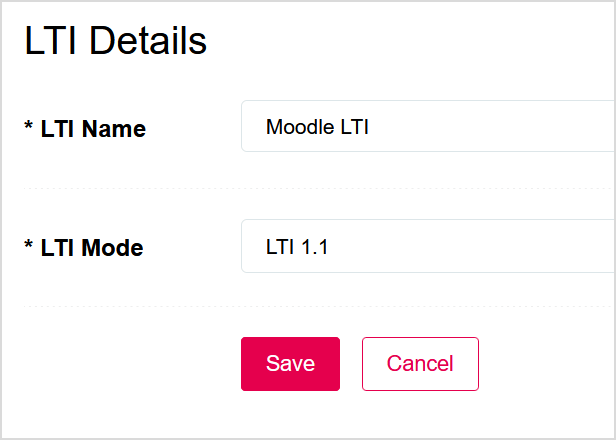
- For ‘LTI Name’ enter a name for the LTI setting.
- Select ‘LTI 1.1’ for ‘LTI Mode’.
- Hit the ‘Save’ button.
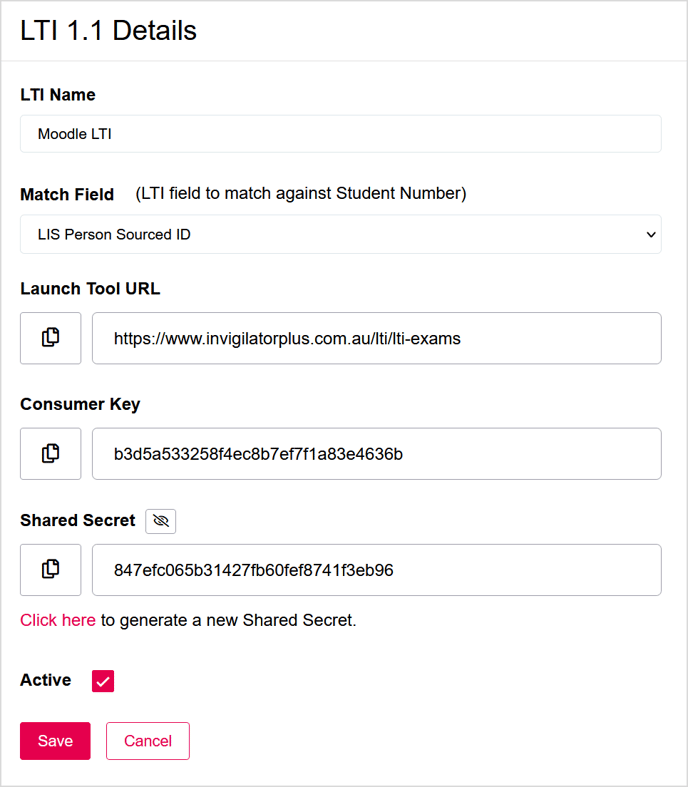
- For ‘Match Field’, select the LTI field that will be used to match against the Student Number field in invigilatorPlus.
- Note the Launch Tool URL, Consumer Key and Shared Secret. These will be required when setting up the LTI in Moodle LMS.
Setup LTI 1.1 in Moodle LMS
- Log into Moodle LMS using an admin account.
- From the Administration panel, select Site administration → Plugins → Activity modules → External tool → Manage tools.
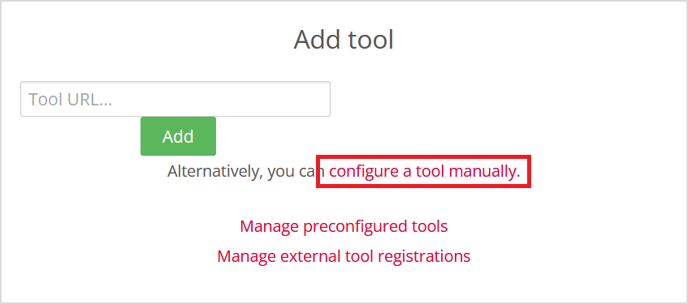
- In the Manage tools page, select Configure a tool manually.
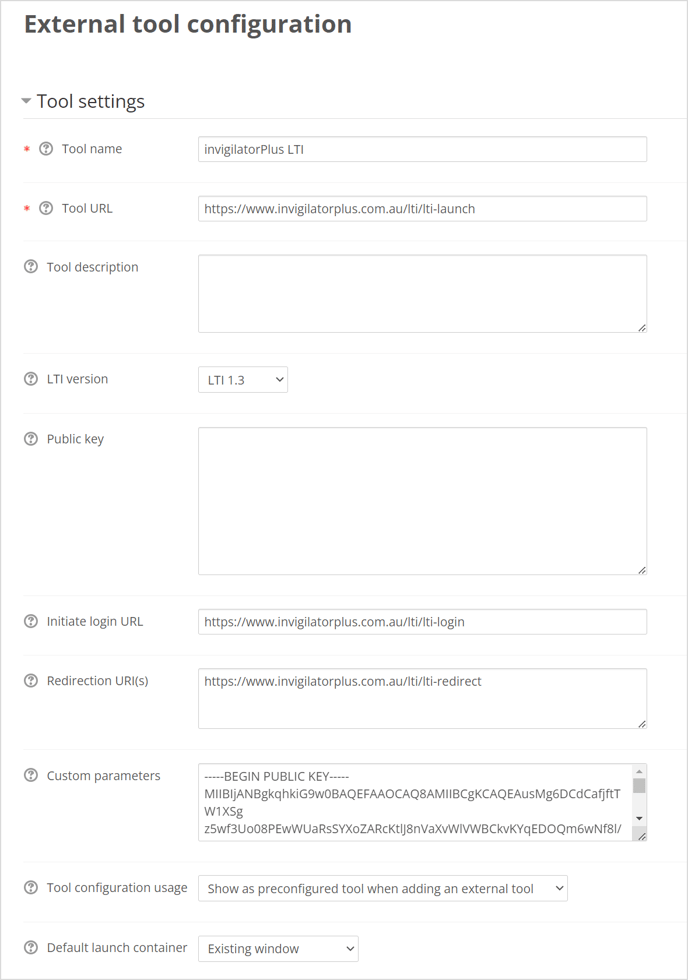
- Enter a name for the tool.
- Set ‘LTI version’ to ‘LTI 1.0/1.1’.
- Set ‘Tool configuration usage’ to ‘Show as preconfigured tool when adding an external tool’.
- ‘Set Default launch container‘ to ‘Existing window‘.
- Copy the values for ‘Tool URL’, ‘Consumer key’ and ‘Shared secret’ from the settings in invigilatorPlus.
- Hit the ‘Save’ button.
Add LTI link in Moodle LMS
- Navigate to a course page in Moodle.
- From the Course administration menu select ‘Turn editing on’.
- In the section where you would like to add the link, click on ‘Add an activity or resource’.
- In the activities list, select ‘External tool’ and then click the ‘Add’ button.
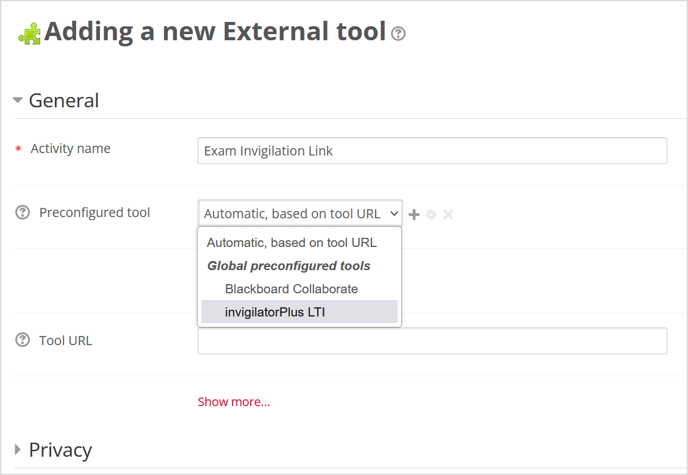
- Enter a name for the activity.
- For ‘Preconfigured tool’, select the LTI you created in the previous step.
- Hit ‘Save and return to course’ button.