
Connecting your LMS with invigilatorPlus.
Setup LTI 1.3 in invigilatorPlus
- Select ‘Settings’ → ‘LTI Settings’ from the navigation panel.
- Click the ‘Add LTI Setting’ button.
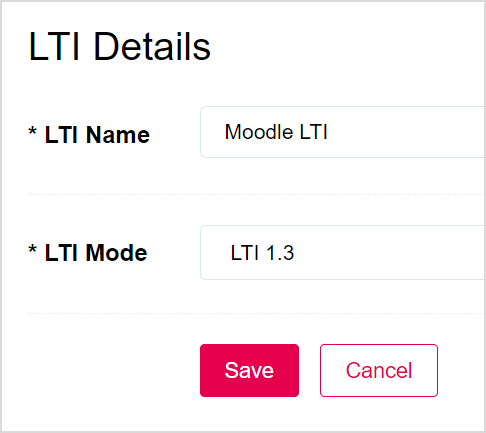
- For ‘LTI Name’ enter a name for the LTI setting.
- Select ‘LTI 1.3’ for ‘LTI Mode’.
- Hit the ‘Save’ button.
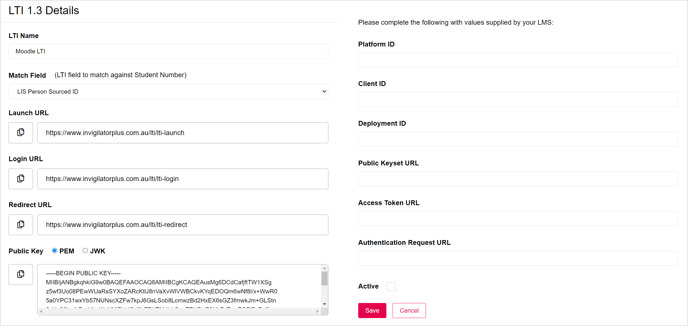
The LTI 1.3 Details form contains values that need to be supplied to Moodle LMS, and fields that need to be completed with values supplied by Moodle LMS.
- For ‘Match Field’, select the LTI field that will be used to match against the Student Number field in invigilatorPlus.
Setup LTI 1.3 in Moodle LMS
Log into Moodle LMS using an admin account.- From the Administration panel, select Site administration → Plugins → Activity modules → External tool → Manage tools.
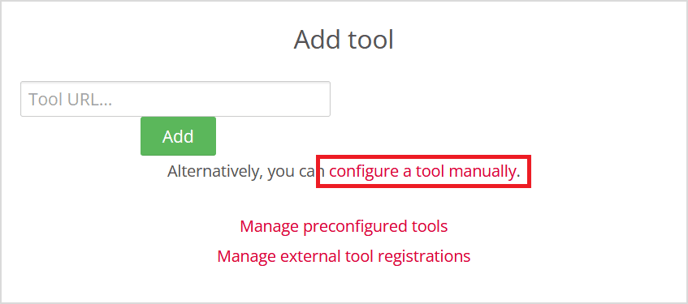
- On the Manage tools page, select ‘configure a tool manually’.
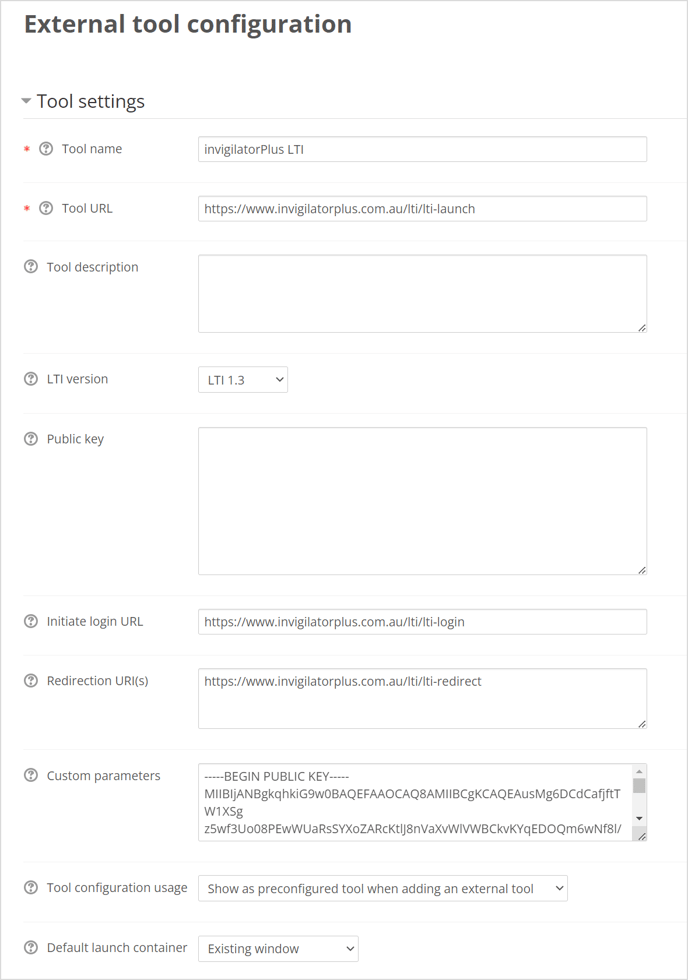
- For ‘Tool name’ enter a name for the tool.
- Set ‘LTI version’ to ‘LTI 1.3’.
- Set ‘Tool configuration usage’ to ‘Show as preconfigured tool’ when adding an external tool.
- Set ‘Default launch container’ to ‘Existing window’.
- Copy the following values from the LTI 1.3 Details form in invigilatorPlus.
- For ‘Tool URL’ enter the invigilatorPlus ‘Launch URL’.
- For ‘Initiate login URL’ enter the invigilatorPlus ‘Login URL’.
- For ‘Redirection URI(s)’ enter the invigilatorPlus ‘Redirect URL’.
- For ‘Public key’ enter the invigilatorPlus ‘Public Key’ in PEM format.
- Click the ‘Save Changes’ button.
Complete LTI 1.3 form in invigilatorPlus
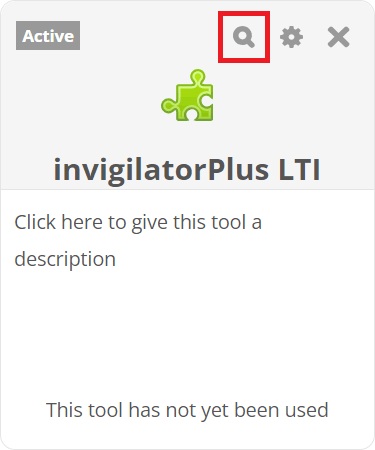
- In the Moodle LMS manage tools page, locate the LTI 1.3 tool you created in the tools section.
- Click on the magnifying glass icon. This will display the ‘Tool configuration details’:
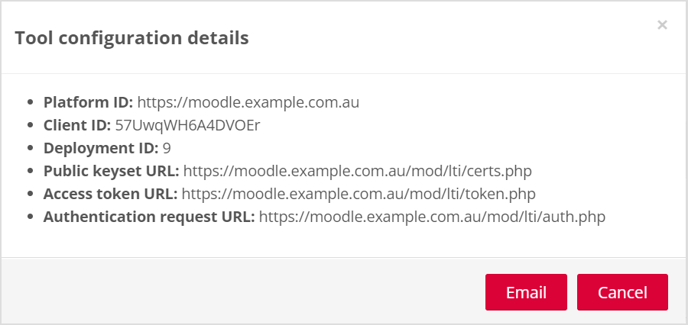
- Copy the following configuration values to the LTI 1.3 Details form in invigilatorPlus.
- For ‘Platform ID’ enter the Moodle tool value ‘Platform ID’.
- For ‘Client ID’ enter the Moodle tool value ‘Client ID’.
- For ‘Deployment ID’ enter the Moodle tool value ‘Deployment ID’.
- For ‘Public Keyset URL’ enter the Moodle tool value ‘Public keyset URL’.
- For ‘Access Token URL’ enter the Moodle tool value ‘Access token URL’.
- For ‘Authentication Request URL’ enter the Moodle tool value‘ Authentication request URL’.
- Make sure the Active field is selected.
- Click the ‘Save’ button to complete the LTI 1.3 setup.
Add LTI link in Moodle LMS
- Navigate to a course page in Moodle.
- From the course administration menu select ‘Turn editing on’.
- In the section where you would like to add the link, click on ‘Add an activity or resource’.
- From the activities list, select ‘External tool’.
- Click the ‘Add’ button.
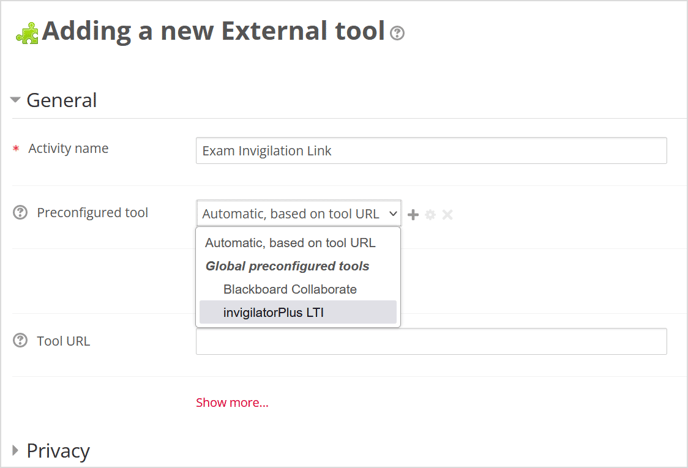
- For ‘Activity name’ enter a name for the activity.
- For ‘Preconfigured tool’, select the LTI you created in the previous step.
- When you have finished click the ‘Save and return to course’ button.